Clean Up
All features
The Clean Up tool cuts dead air, repeated takes and filler words from the timeline, fixes wrong words in your captions, and adds J-cuts in Premiere. Pick a mode, review the cuts, then remove them in one pass. Nothing is cut until you confirm, and every cut is made on a copy.
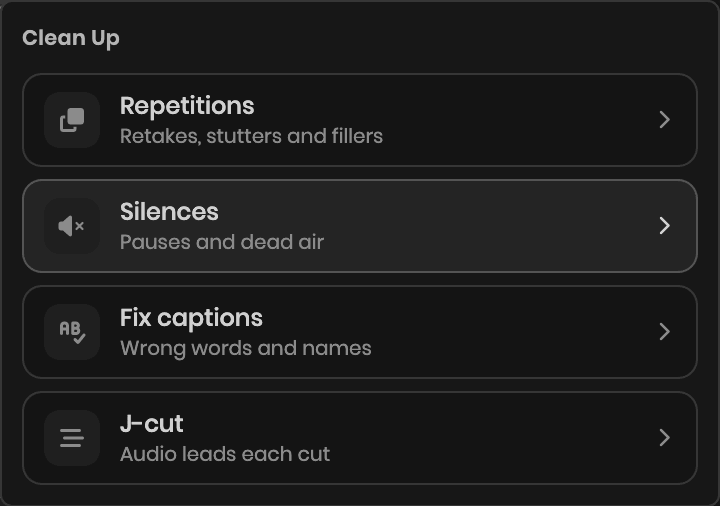
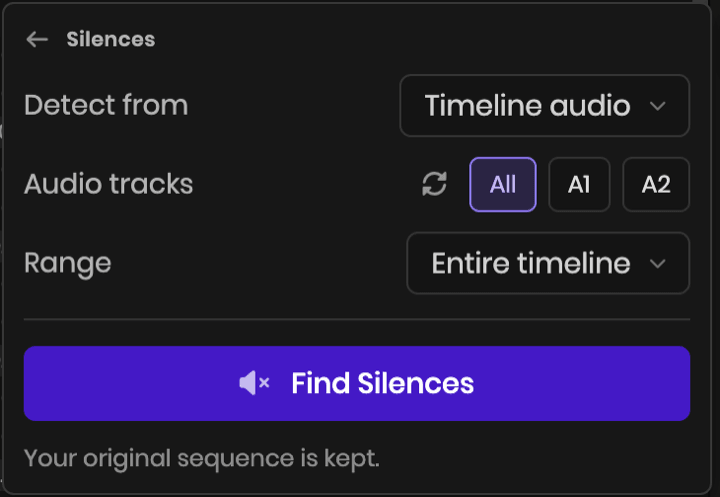
Silences: Detect quiet gaps in your timeline audio, then review them on a waveform. Everything under the Silence level line is cut. Drag the line, or use the slider.
- Start from a preset: Gentle, Normal or Tight. Click + to save your own
- Auto finds the level from the recording, and Reset puts the defaults back
- Cut pauses longer than sets the shortest pause to cut, and Padding around speech keeps a little of the pause at each end
- Remove sounds shorter than cuts a click or a breath between two pauses, so it does not stay as a tiny clip
- In Premiere, pick the Audio tracks to analyze, like the voice track when music is on another one
- In Premiere, Range limits the cut to the In and Out points or to the clips you selected
- Or set Detect from to Caption pauses to cut the gaps between your captions
Repetitions: Catch repeated words (stutters like “I I”), false starts, whole repeated takes and filler words, in one pass.
- Detect from your captions, or transcribe the timeline audio with cloud AI
- An AI check also finds reworded retakes and talk about the recording. It uses AI credits
- In Premiere, with timeline audio, Audio tracks and Range work as in Silences. With a Range, only that part is transcribed
- In the review, click Script and paste the script you recorded from. Each line keeps its best take
- Adjust the cuts in a transcript view or on the waveform. Drag across the waveform to cut any stretch of audio
- Each reason has a chip that keeps or cuts all of its words at once, like Fillers or False starts
- Hide cuts shows only what stays, and the review has undo and redo
- The redundant take is ripple-cut from the timeline, and from your captions when you detected from them
Fix captions: Replace the words the transcription gets wrong, like names and brands, in every caption at once.
- Click Words to replace and add each word with what to write instead
- Leave Replace with empty to remove a word
- Keep a List for each client
- Only the caption text changes. The video stays as it is
J-cut (Premiere): The audio of each clip starts a few frames before its video, for tighter cuts.
- Turn on J-cut in the Silences or Repetitions review, under Transition, to add it to the cuts they make
- Or pick the J-cut card and click Apply J-cuts to add it to the cuts already in the sequence
- Set how many frames the audio leads
- The audio that starts early goes on another audio track, over the end of the clip before it
Your original stays: Silences, Repetitions and J-cut always work on a copy of your comp or sequence, and open that copy. Icon buttons beside the main button take you back.
- Delete this copy (trash) deletes the copy you just made and opens the original
- Review last (clock) opens the original and your last review again, with no new scan and no new credits
Order: Run Repetitions before Silences. The pauses between takes help the transcription tell them apart. Then remove silences, then transcribe for captions, so caption timing matches the trimmed audio. If you already have captions, check their timing after a large trim.
Keep by selection: Clean Up removes what it detects. To keep only the passages you pick in the transcript, use Paper Edit.