Installation
Get MotionCaption into After Effects and Premiere, then activate your license on first launch.
Choose an install method
On macOS, the one-click installer (.pkg) is the recommended option. It sets up the extension and the preset fonts in one step. On Windows, MotionCaption installs from a .zxp: use the free aescripts ZXP installer, or copy the files in with the manual steps.
The installer asks for your Mac password once.
- Download the installer (
.pkg). - Run it and follow the prompts.
- Restart After Effects and/or Premiere.
Get a ZXP installer
A .zxp needs an installer app to add it to your Adobe apps. The free aescripts one works for both After Effects and Premiere.
Get the aescripts ZXP installerInstall the extension
- Download
MotionCaption.zxpfor your OS. - Open your ZXP installer.
- Drag and drop
MotionCaption.zxpinto the window. - Wait for installation complete.
- Restart After Effects and/or Premiere.
Unpack the package and copy the extension folder into your user CEP extensions directory.
- Download
MotionCaption.zxpfor your OS. - Rename
MotionCaption.zxptoMotionCaption.zip. - Extract the ZIP. You should get a folder named
MotionCaption. - Copy that MotionCaption folder into the path for your OS below.
C:\Users\YourUsername\AppData\Roaming\Adobe\CEP\extensions\MotionCaption
- Restart After Effects and/or Premiere.
Manually installed extensions are unsigned, so Adobe only loads them when the CEP debug flag is on. Enable the CEP debug flag, then restart your Adobe app.
Open the extension
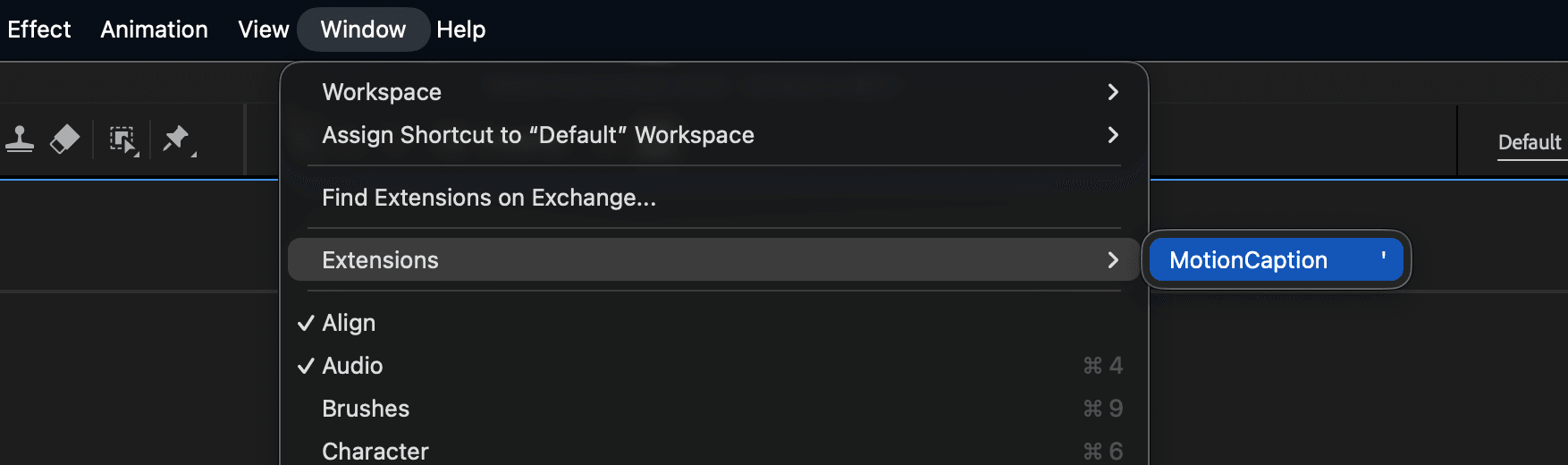
In After Effects or Premiere, open Window → Extensions → MotionCaption. Not in the menu? Quit and reopen the app, then see Troubleshooting.
License activation
On first launch, click Connect in browser or Continue with Google, or enter your license key. No account yet? Create one on the page that opens in your browser. Signing in starts your free trial.
Move your license to another device
Your license activates on up to 2 devices at once. To free a slot, open MotionCaption on the device you no longer use and click Deactivate, then activate on the new device with the same license. No longer have the old machine? Contact support and we will reset your activations.
Update to the latest version
MotionCaption tells you inside the panel when a new version is available. Click the update prompt and it downloads the latest version for your OS. Follow the prompt to update, then restart your Adobe app. You can always re-download from the Download page.
Uninstall
Delete the MotionCaption folder from your CEP extensions directory, then restart your Adobe apps:
- Windows:
C:\Users\YourUsername\AppData\Roaming\Adobe\CEP\extensions\MotionCaption - macOS:
~/Library/Application Support/Adobe/CEP/extensions/MotionCaption